DockSense AI User Guide
Step-by-step instructions to get started and achieve complete results.
Step 1: User Login
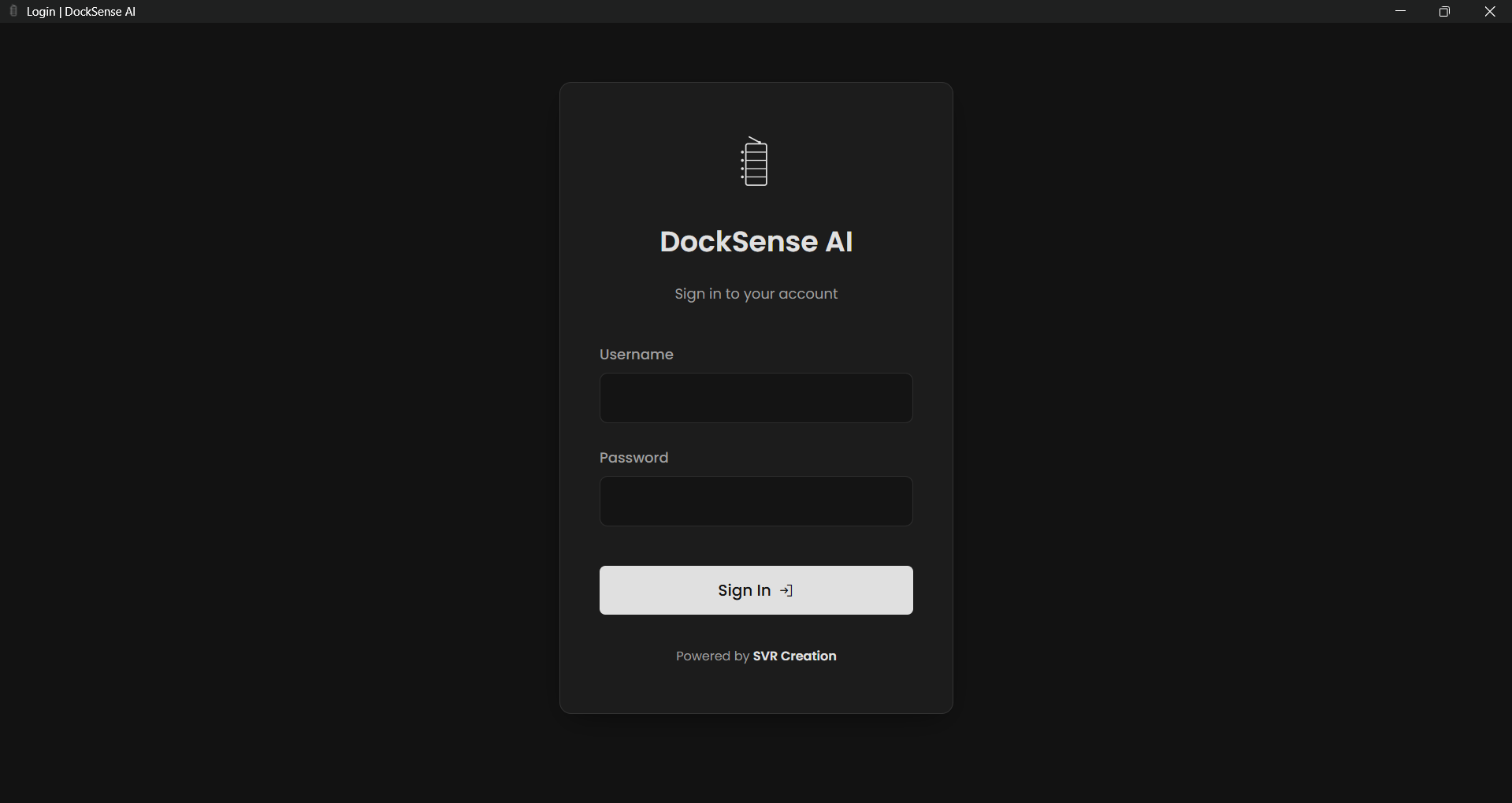
Begin by launching DockSense AI. On the welcome screen, use your credentials to log into the platform. This secures your session and syncs your workflow history.
Step 2: Navigating the Dashboard
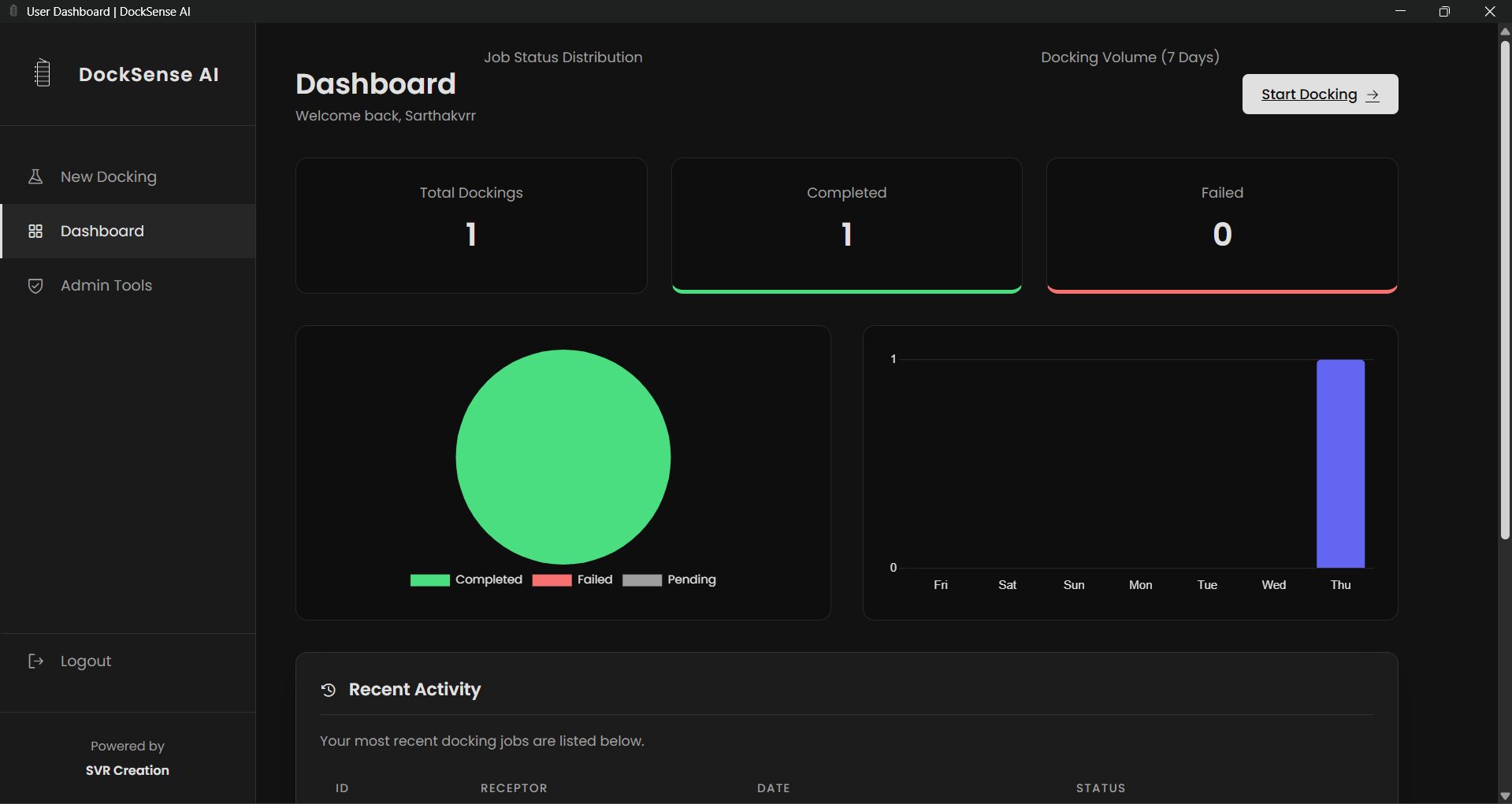
Once logged in, you will be directed to the main dashboard. Here, you have a clear overview of your workspace, allowing you to manage your projects, start new workflows, and monitor system resources.
.png)
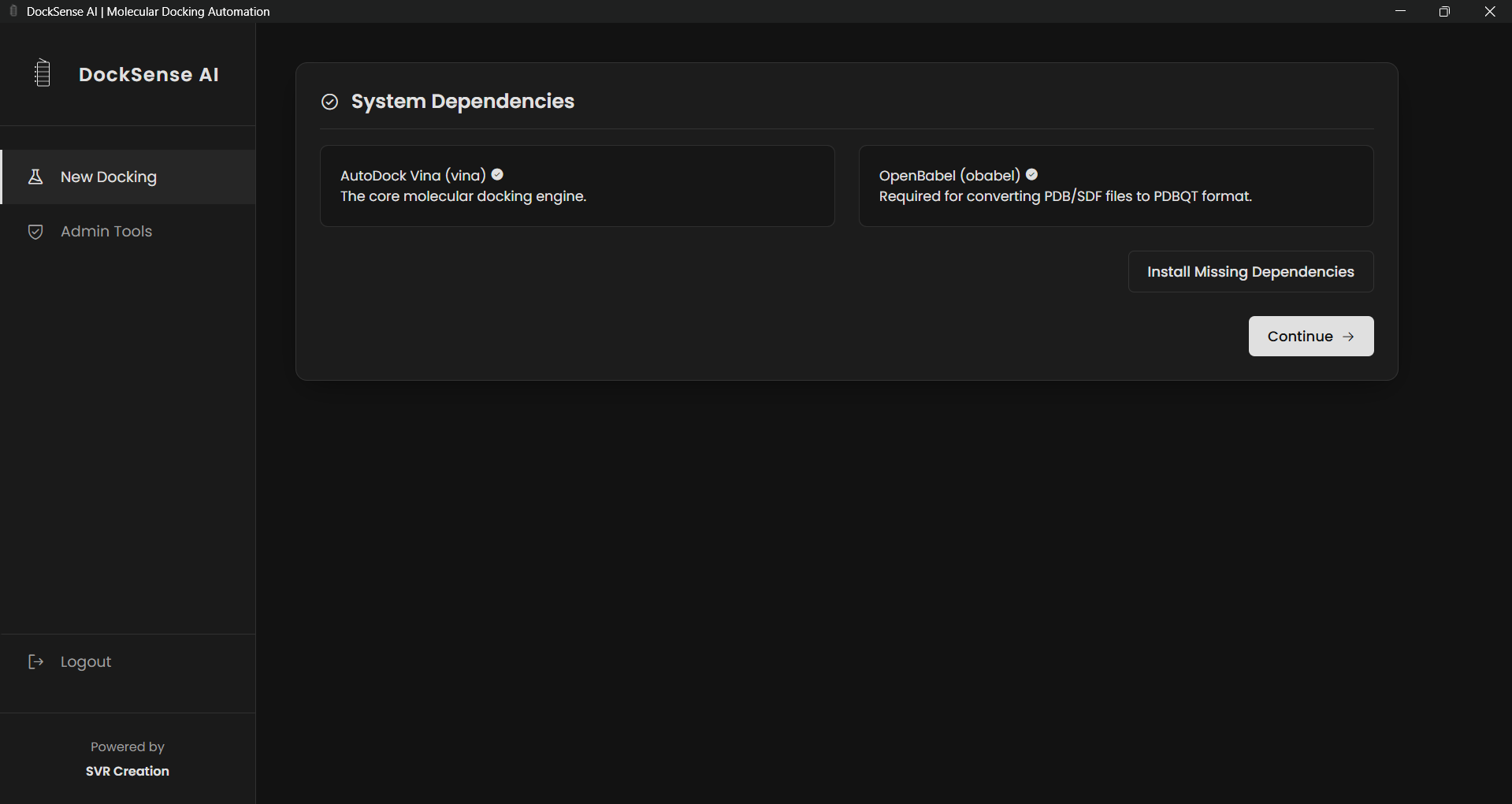
Step 3: Checking Dependencies
Before initiating complex tasks, DockSense AI automatically verifies the necessary system dependencies and required software packages to ensure a smooth, error-free run.
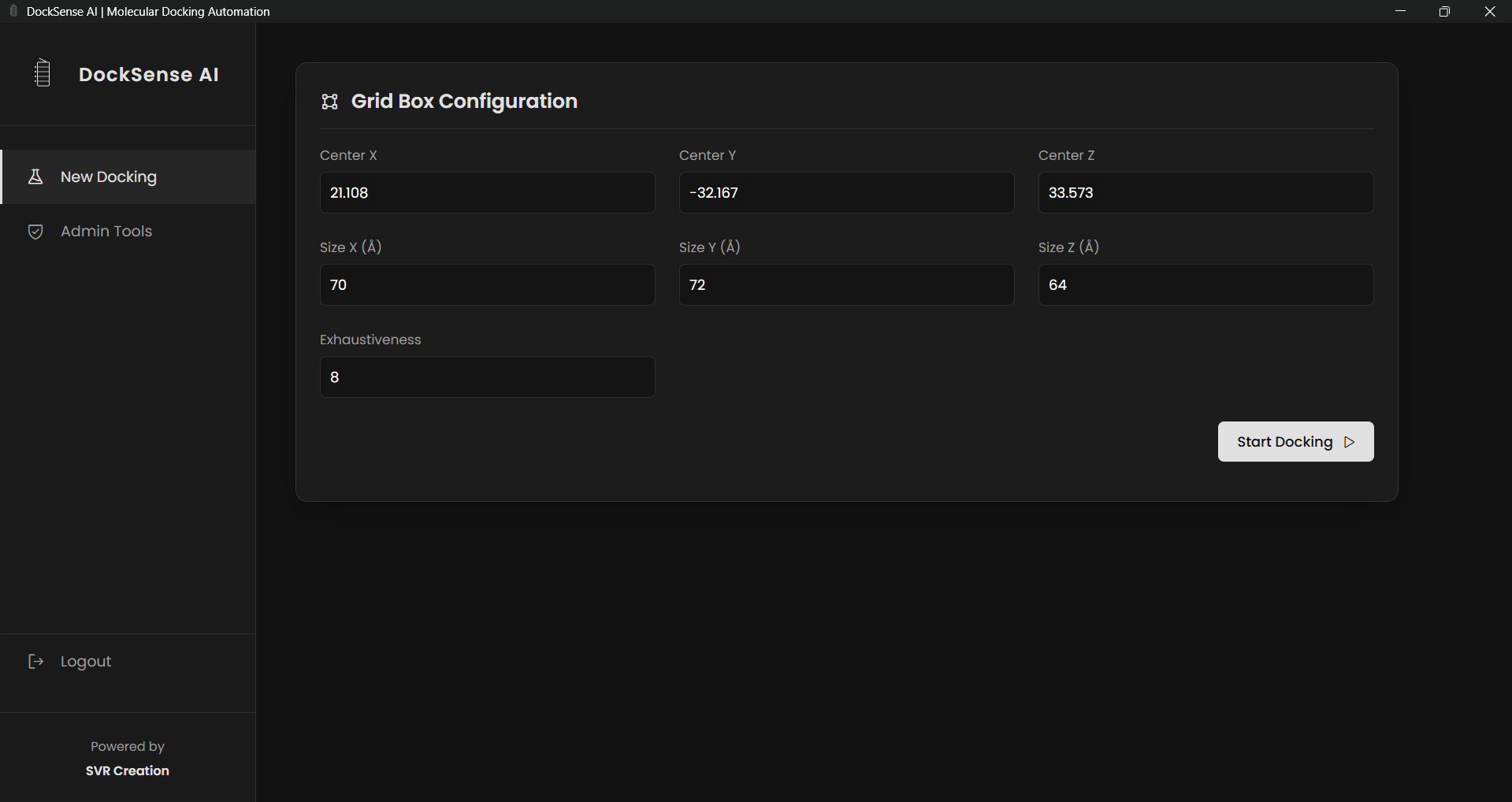
Step 4: Setting the Configuration
Proceed to set your parameters. The configuration window allows you to select grid settings, specify directories, and choose the computational parameters tailored to your research needs.
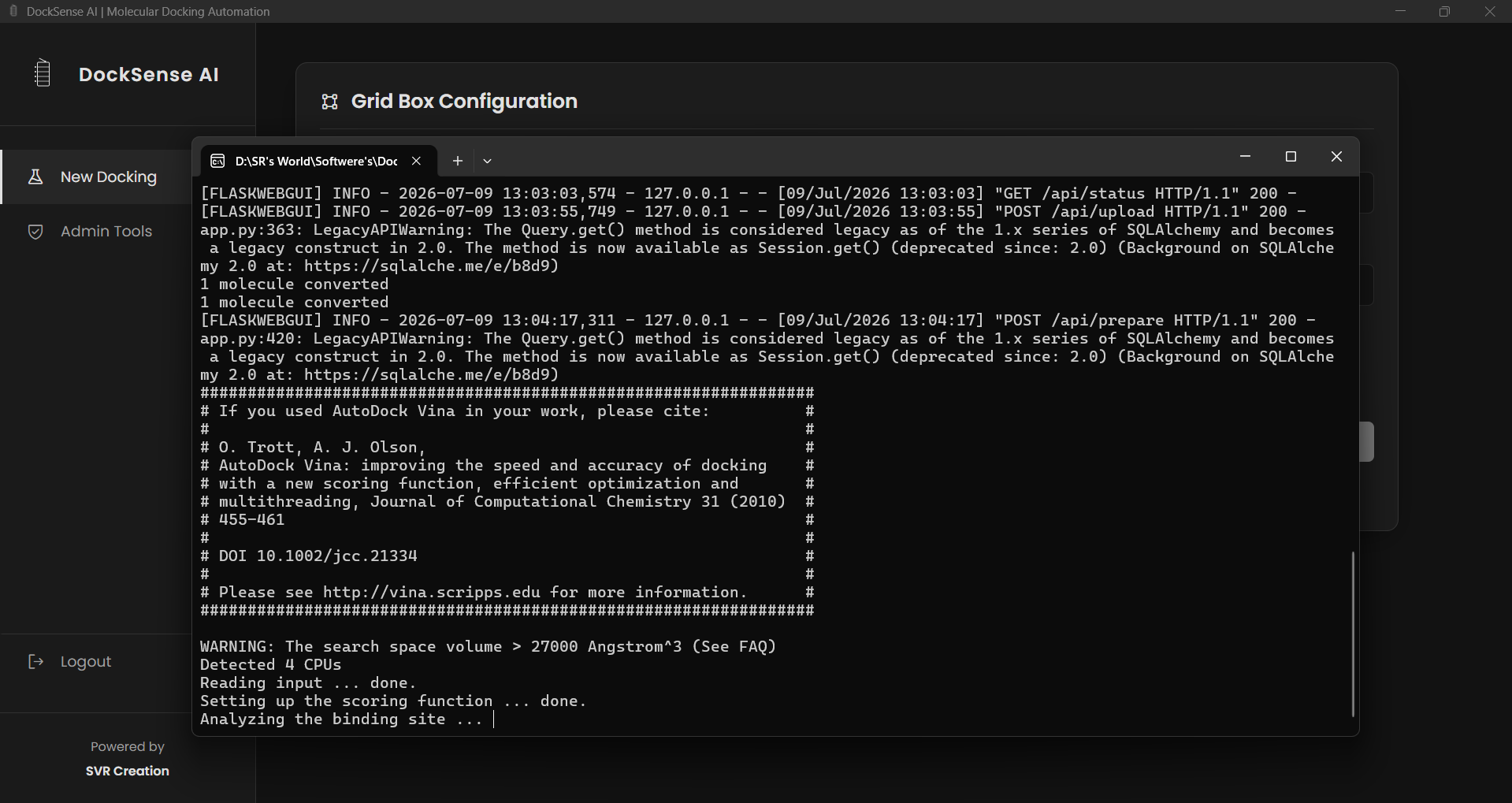
Step 5: Initiating the Docking Process
With parameters set, start the docking process. The application provides visual feedback as the job commences, and you can monitor real-time outputs in the integrated terminal.

Step 6: Completion and Reporting
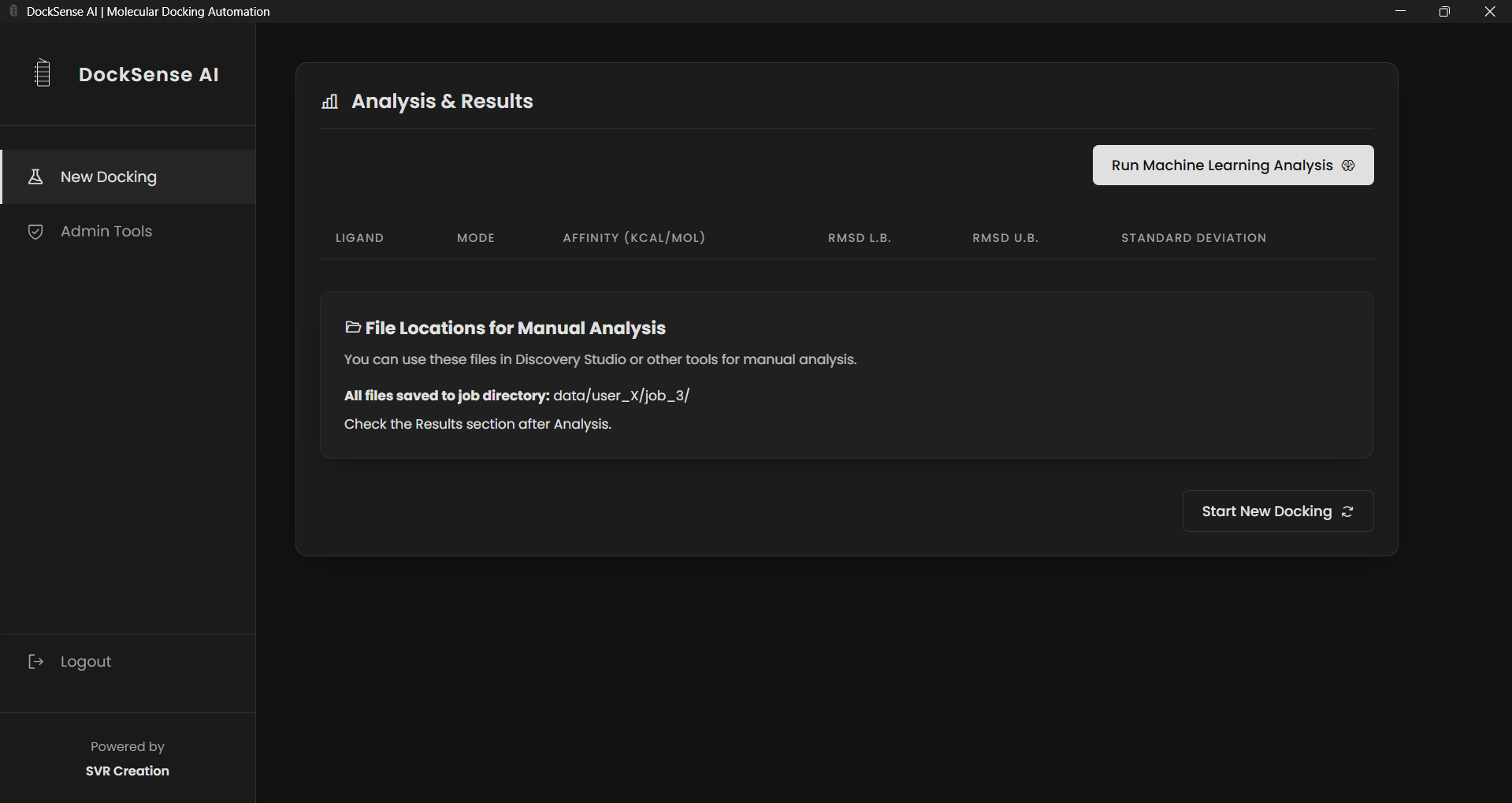
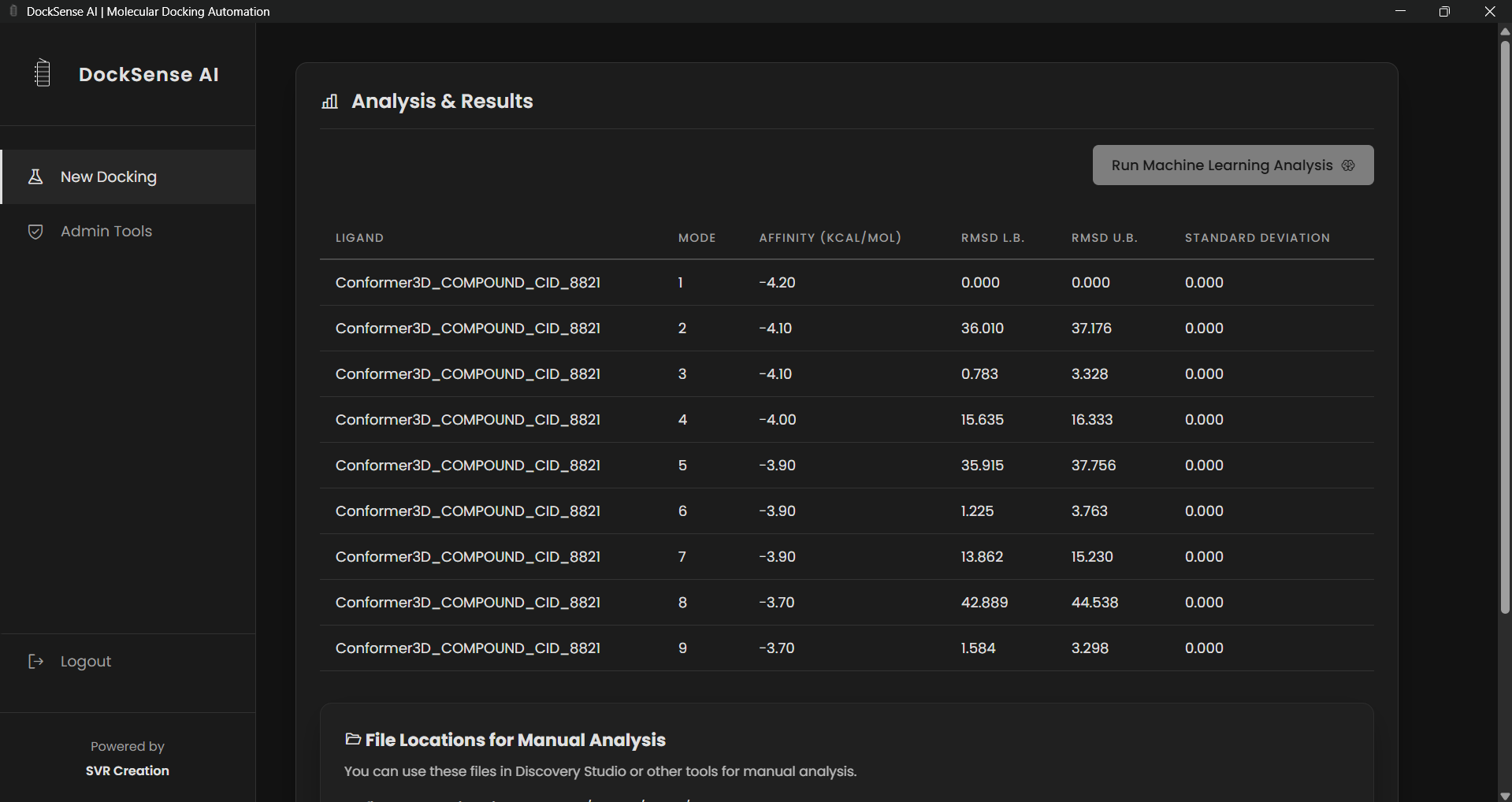
Upon finishing the computational tasks, the application will notify you of completion. You can then review comprehensive ML reports and export your final analysis data for further study.